As part of your school placements, you will curate a School Planning Folder for each placement. This is a working document which should contain everything you need to plan, organise and manage your teaching.
This folder should support you to teach confidently and coherently and be available to all school staff and your tutor. The School Planning Folder must be kept in UHI OneDrive and will be shared with your school mentor and UHI tutor.
In this guide, you will information about
- the policies for using UHI OneDrive and storing your School Planning Folders there;
- accessing your UHI OneDrive;
- sharing your School Planning Folders with the school mentor and UHI tutor;
- populating your school planning folder.

About using this resource
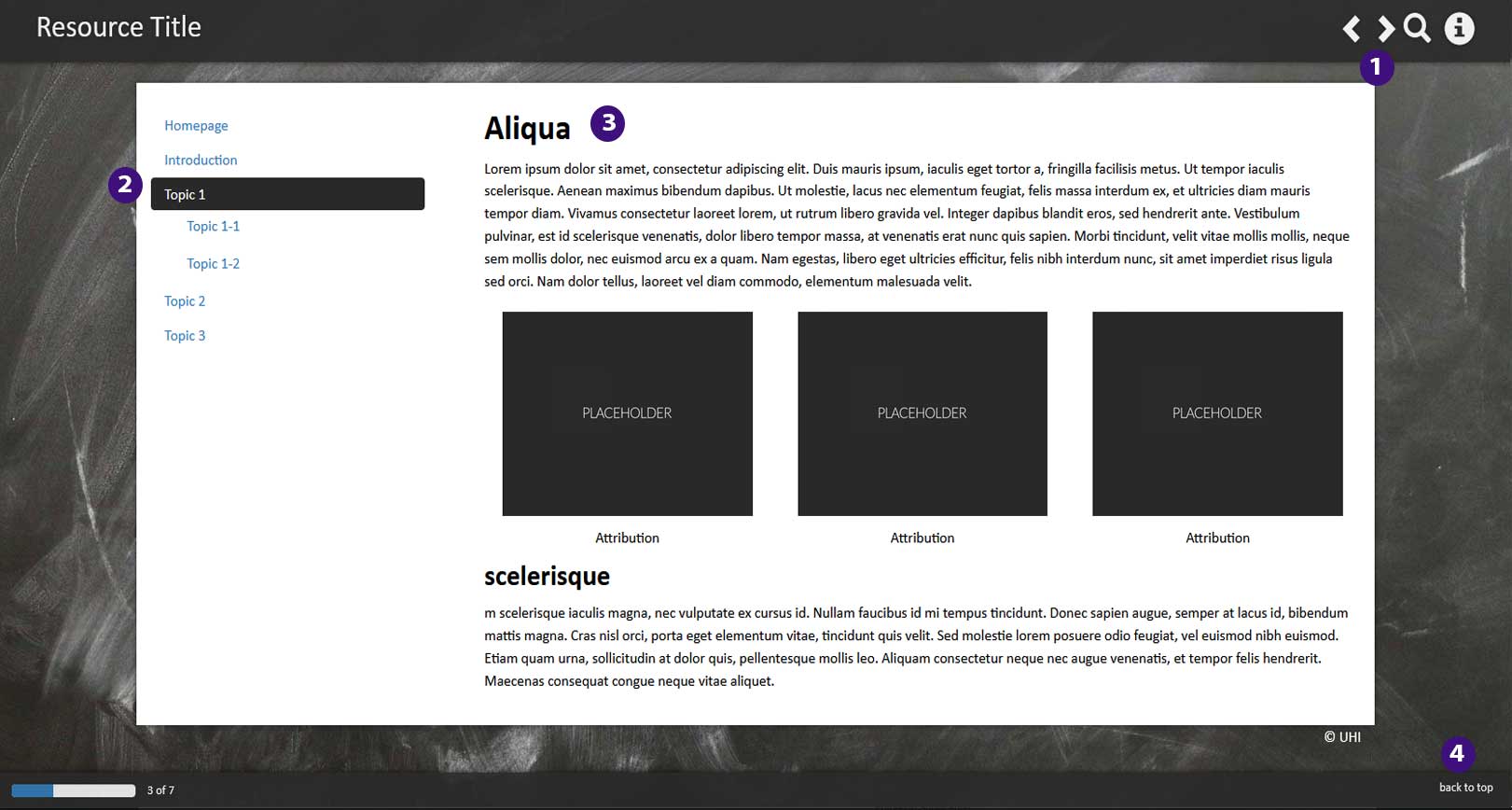
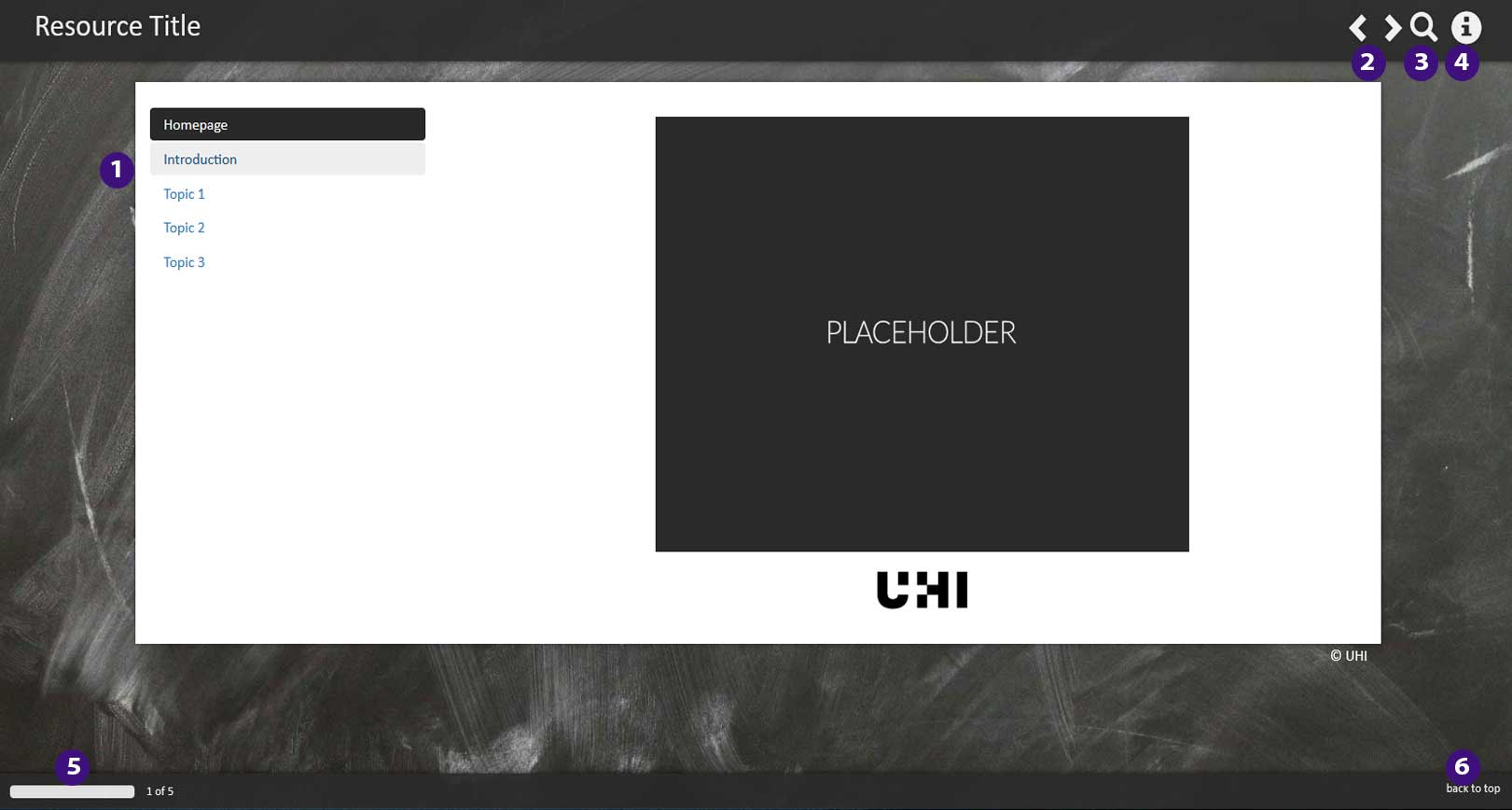
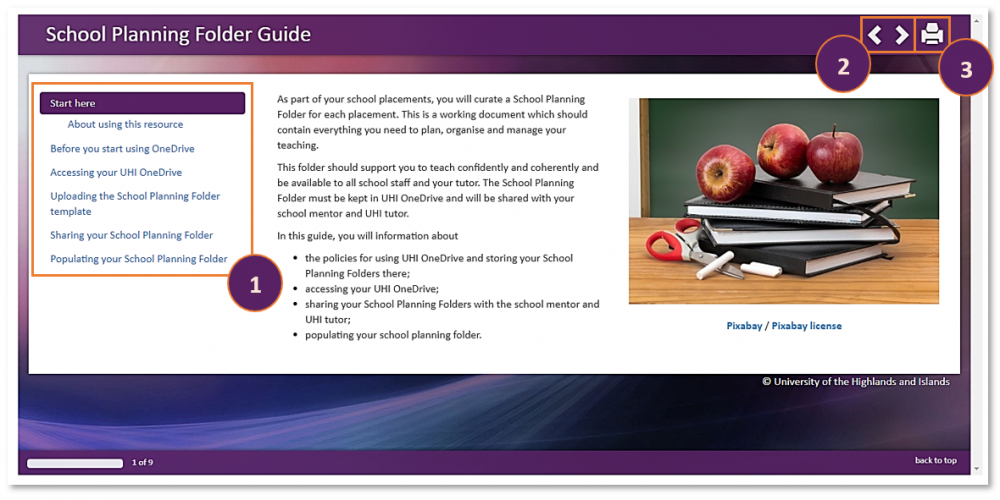
How to navigate the resource:
- Use the menu on the left-hand side to jump to a particular page (1), or
- Use the arrows in the top right-hand side corner of the resource to navigate to the next page within the resource (2).
How to print the resource:
- Use the print button in the top right-hand side corner of the resource to print the resource as a PDF (3).
Before you start using OneDrive
In using UHI OneDrive for storing, curating and sharing your School Planning Folders, there are some rules you must follow.
In addition and to comply further with GDPR and the policy for the use of UHI OneDrive, you may only share your School Planning Folder with your school supporter and UHI tutor using their official school or UHI email address.

As you are using UHI OneDrive, you should also keep in mind the following:
- UHI OneDrive is not backed up. If you accidentally delete a document it will be held in the OneDrive Recycle Bin for up to 3 weeks and can be retrieved from there.
- As with any service, once you've logged into the service, don't leave your device unattended. Remember to lock your device before walking away.
- If you've got a personal Windows account you may already have a OneDrive area, so Microsoft will use a generic name for the one UHI provides which is 'OneDrive for Business' or you may see 'OneDrive for Students' and 'OneDrive - University of the Highlands and Islands', these are all the same service.
Please note that even if you already have a personal OneDrive account, you must use the UHI OneDrive account for storing, curating and sharing your School Planning Folder in accordance with the university's responsibility to be GDPR compliant. - Once you leave the university you will lose access to this OneDrive, you should ensure you take a copy of any important files prior to completing your studies with UHI.
However, once again you must ensure that the materials you take with you from your UHI OneDrive do not include any data that could identify a pupil.
Accessing your UHI OneDrive
To access the service you need to login to our Office365 service using your full university account (<userID>@uhi.ac.uk) and your usual password.
Click on the top left hand menu bar (square made up of little squares ) and select OneDrive. When you first go to access this there will be a delay as the service will be activating your account.
You'll also get a question tick box "Let's get social". If you leave in the tick the service will include information in your newsfeed, we'd recommend you choose 'No thanks' at the moment and make changes to your newsfeed settings manually when you get used to the service.
(Source: official UHI OneDrive Guidance page).jpg?1601642174527)
Uploading the School Planning Folder template
Now that you have accessed your UHI OneDrive, you are ready to upload the School Planning Folder Template.
Follow the steps below to find out how to download the template from Brightspace, unzip it and upload it into your UHI OneDrive.
 (1) (1).png?1601645892979)
Remember that you can enlarge any of the screenshots below by clicking on them.
Once you have viewed the enlarged image, click anywhere on the screen to return to the page.

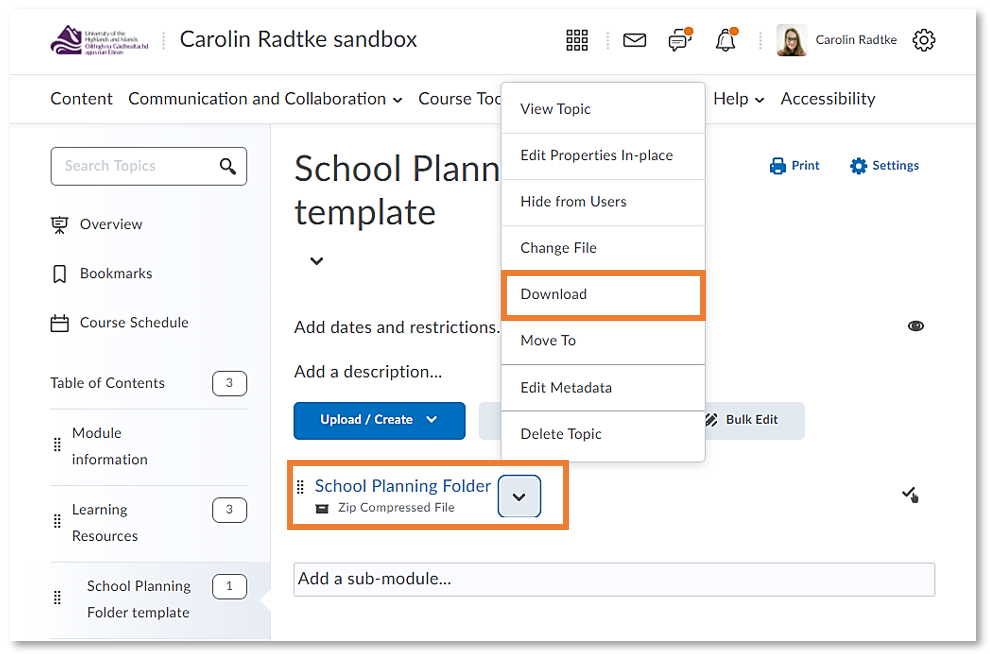
Open the drop-down menu next to the School Planning Folder template and select Download from the menu (Figure 1).
The template will now be downloaded to the Downloads area of your device.
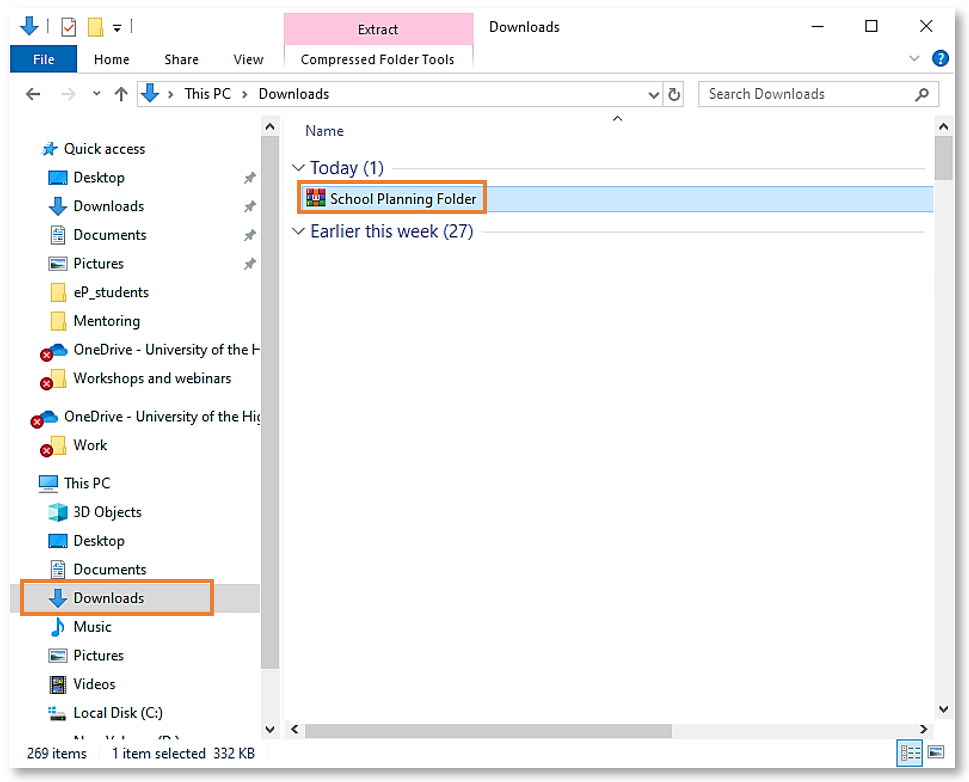
To unzip the file so you can use it in your UHI OneDrive, locate the file in your Downloads area and right-click on it (Figure 2).
From the menu that will appear, select Extract All or Extract Files.
You should now have an unzipped copy of the template either in your Downloads area or elsewhere if you chose to save the unzipped copy in a different area on your device.
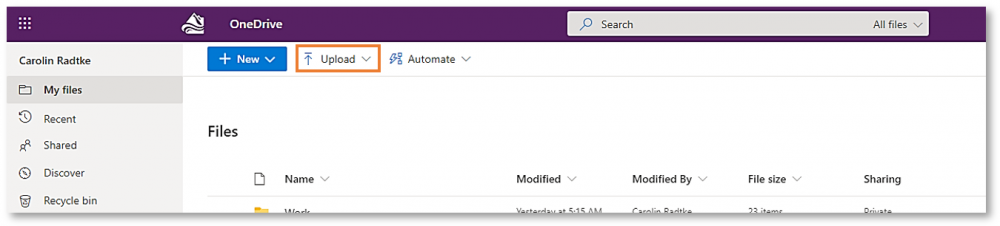
Go back to your UHI OneDrive and click on Upload at the top of the screen (Figure 3).
From the drop-down menu that will appear, select Folder.
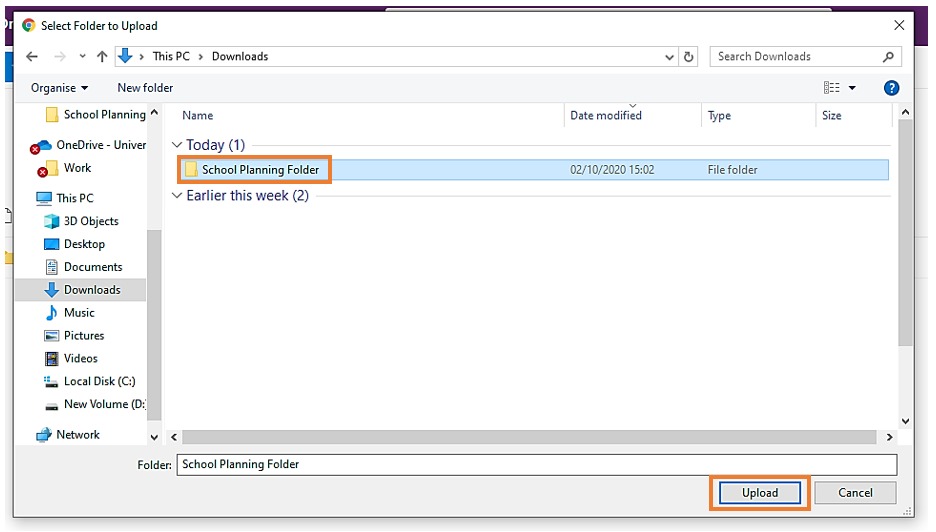
You will now be able to find and select the unzipped School Planning Folder template for import (Figure 4).
Once you have clicked on Upload, you might see a message asking you whether you are sure that you would like to upload the folder with its files. Confirm by clicking on Upload.
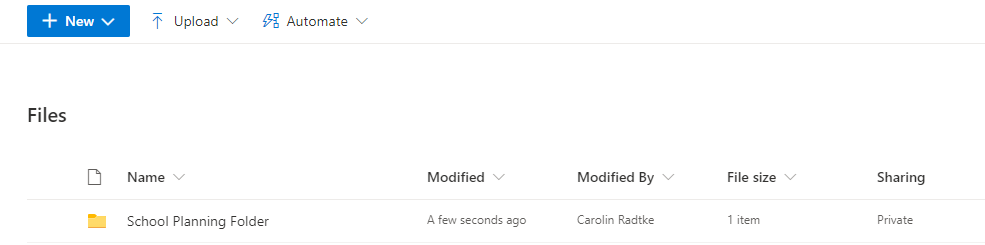
You will now see that the folder has been added to your UHI OneDrive (Figure 5).
Sharing your School Planning Folder
Once you have uploaded the School Planning Folder template into your UHI OneDrive, you can share the School Planning Folder with your school supporter and UHI tutor.
You must not provide external access to your UHI OneDrive folder to anyone other than your school supporter and UHI tutor.
Continue reading below to find out how to share your School Planning Folder.

Remember that you can enlarge any of the screenshots below by clicking on them.
Once you have viewed the enlarged image, click anywhere on the screen to return to the page.
To share the School Planning Folder with all its subfolders, hover over the space next to the top folder's name and click on the Sharing icon (Figure 1).

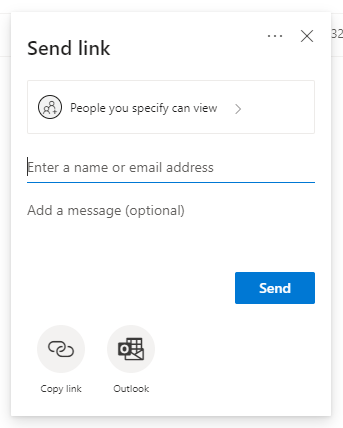
A pop-up window will open.
You can now enter your UHI tutor using their UHI email address and with your school supporter using their official school email address.
Below the filed for the email addresses, you can also add a short message.
When you are ready to share the folder, click on the blue Send button (Figure 2).
Your UHI tutor and school supporter will now receive an email with a button for accessing your folder.
Once they have accessed the folder for the first time, you will get a notification email confirming that they have done so.
After you have shared the folder, you will be able to see that it has been shared successfully.
On the OneDrive homepage, you will be able to tell the shared folder apart from an unshared folder by the changed folder icon in front of the folder name. A shared folder will have an icon of a folder with a sketch of a person in it (Figure 3; "School Planning Folder") while an unshared folder (Figure 3; "Work") will simply have an icon of a folder.
You can also access information about who you shared the folder with. Simply click on the folder. Once you are in the folder, you will see an icon of two people next to the top folder name at the top of your page (Figure 4). If you click on the icon of the two people, a side panel will open providing you with information on who has access to the folder.


Populating your School Planning Folder
On the next two pages, you will find out what is included in the School Planning Folder template and how it is organised. You will also find information on how to use the template documents in the School Planning Folder.
Remember that you can enlarge any of the screenshots on the following two pages by clicking on them.
Once you have viewed the enlarged image, click anywhere on the screen to return to the page.

What is included in the template
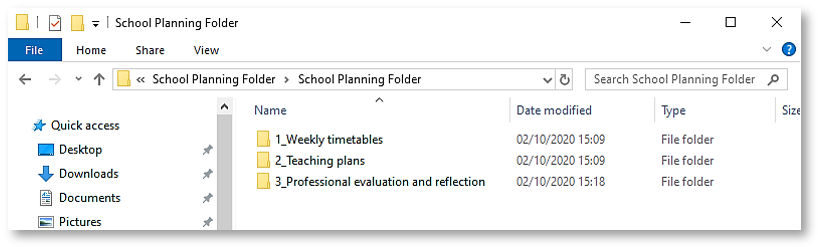
The School Planning Folder template includes 3 subfolders (Figure 1):
- Weekly timetables
- Teaching plans
- Professional evaluation and reflection
Each of the subfolders includes one or more MS Word templates to help you record and reflect on your teaching practice during your placement.
Weekly timetables
As you work in your School Planning Folder, you should...
- ... include a copy of your weekly timetables;
- ... note details of starting, finish, break and lunch times and arrangements for any additional routines
- ... include a set of Weekly Overview Plans to show what you will be doing with your classes each day (as soon as this has been discussed with the teaching staff).
Teaching plans
As you work in your School Planning Folder, you should...
- ... include Lesson Plans and Evaluations for every lesson delivered.
- These should feed into your subsequent planning and inform your daily entries in your Reflective Journal.
Professional evaluation and reflection
As you work in your School Planning Folder, you should...
- ... include copies of any Teaching Observation Forms and Collaborative Assessment Logs (CAL), following discussion with mentoring staff;
- ... include an overall evaluation of each placement experience which should include reflection on your progress with reference to the SPR and which should define clear Action Points for you to carry forward to your next Placement.
Using the templates in the School Planning Folder
Navigate inside the School Planning Folder in your UHI OneDrive and open one the subfolder you would like to add to (Figure 1).

Once you are inside the subfolder, you will initially only see the MS Word template(s) but as you complete your placement, you will add to the subfolder.
To edit the template, click on it to open it (Figure 2).

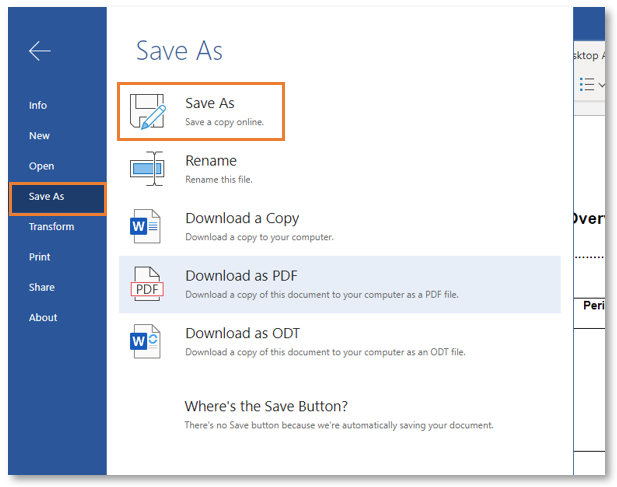
Once the template is opened, you will need to save a copy of it which you can then customise. To do so, click on File in the top left-hand side corner.
From the menu that will open, select Save As, and then again Save As from the list of options (Figure 3).
This will help you create a copy of the template that you can then complete with the necessary information.
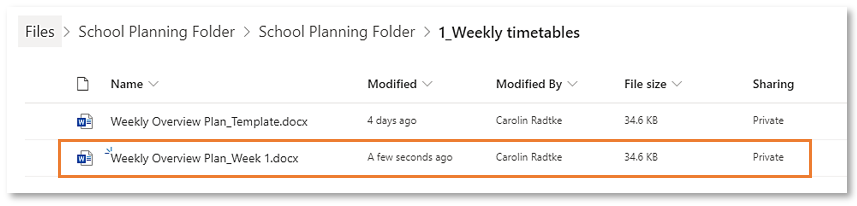
A pop-up window will open. You can now rename the file. In this case, "Weekly Overview Plan_Template" has been renamed to "Weekly Overview Plan_Week 1" (Figure 4).

You will now be able to continue to edit the document with the information for the specific week, lesson, etc.
Once you have finished and return to your UHI OneDrive, you will also see that your copy of the template, in this case "Weekly Overview Plan_Week 1" has been added to the list of files (Figure 5).
Troubleshooting - What to do if external sharing does not work
Step 1:
Please double-check that there is no typo in the email address that you have entered.
So please double-check as well that you are using the correct email address.
Step 2:
If you have double-checked the email address and you are still not able to share the folder, please raise a Unidesk ticket.
- You can do so by sending an email to servicedesk@uhi.ac.uk.
-
Please use the following as the subject for your email:
Can't share DSPF with external school supporter - In the body of your email provide a brief description of the issue and, where possible, the wording of the error message you see when you try to share the folder.